RADHE EASY TASK CRM
The desk an office uses for its clients.
Who uses it
For the owner, and for the people who take the enquiry, run the job, and review the work. Each person signs in and sees what is assigned to them.
How the day runs
The day starts with who should call. The client stays in one folder, with the name, the phone and the email. The job shows who owns it and whether the work has started.
Know who should call today
Due today names the person assigned to the callback or consultation. The desk keeps the note. It does not send the message.
Keep one folder for each client
Name, phone and email stay on the client. A new enquiry starts from that folder, so the office does not open a second record for the same person.
See which job is open
Each job shows the client, the coordinator and whether work has started. An open job stays open until the office finishes it.
Give each person a role
Owner, coordinator, intake and reviewer each have a login. Putting someone on a job names who does that work.
No card. Create the company and the 14 days start.
HOW IT HELPS
Know who should call today
Due today names the person assigned to the callback or consultation. The desk keeps the note. It does not send the message.
Keep one folder for each client
Name, phone and email stay on the client. A new enquiry starts from that folder, so the office does not open a second record for the same person.
See which job is open
Each job shows the client, the coordinator and whether work has started. An open job stays open until the office finishes it.
Give each person a role
Owner, coordinator, intake and reviewer each have a login. Putting someone on a job names who does that work.
THE DESK
Each tab, and what it does for the office.
These pictures are the demonstration office. Names and emails in the pictures are demonstration records. The mark in the corner is RET, for Radhe Easy Task.
Overview
What this tab does
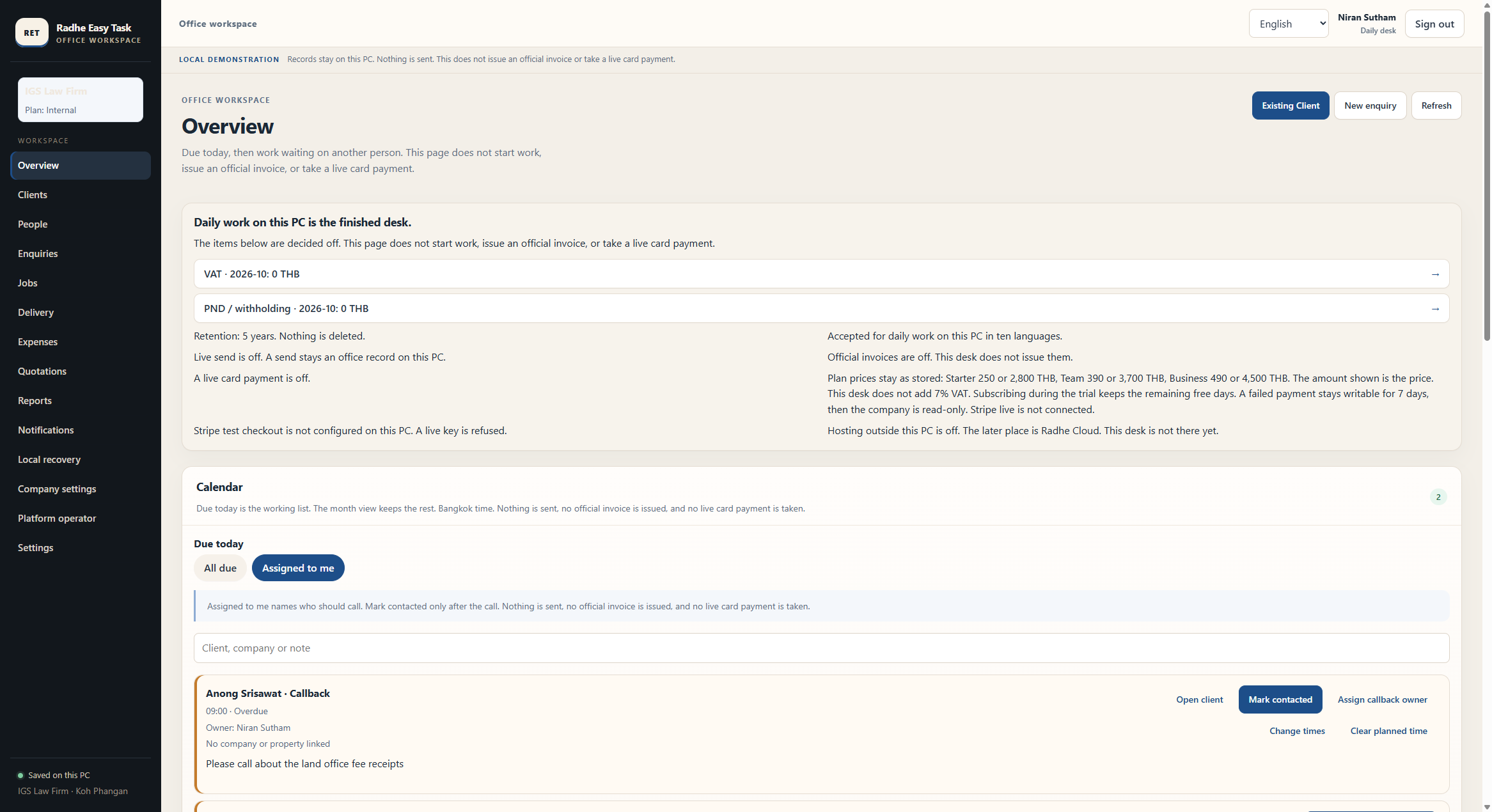
The first screen after sign-in. It shows what is due today, the jobs assigned to this person, and work waiting on someone else.
How it helps
The office sees the day before opening a folder, so a callback or an open job is not missed.
Clients
What this tab does
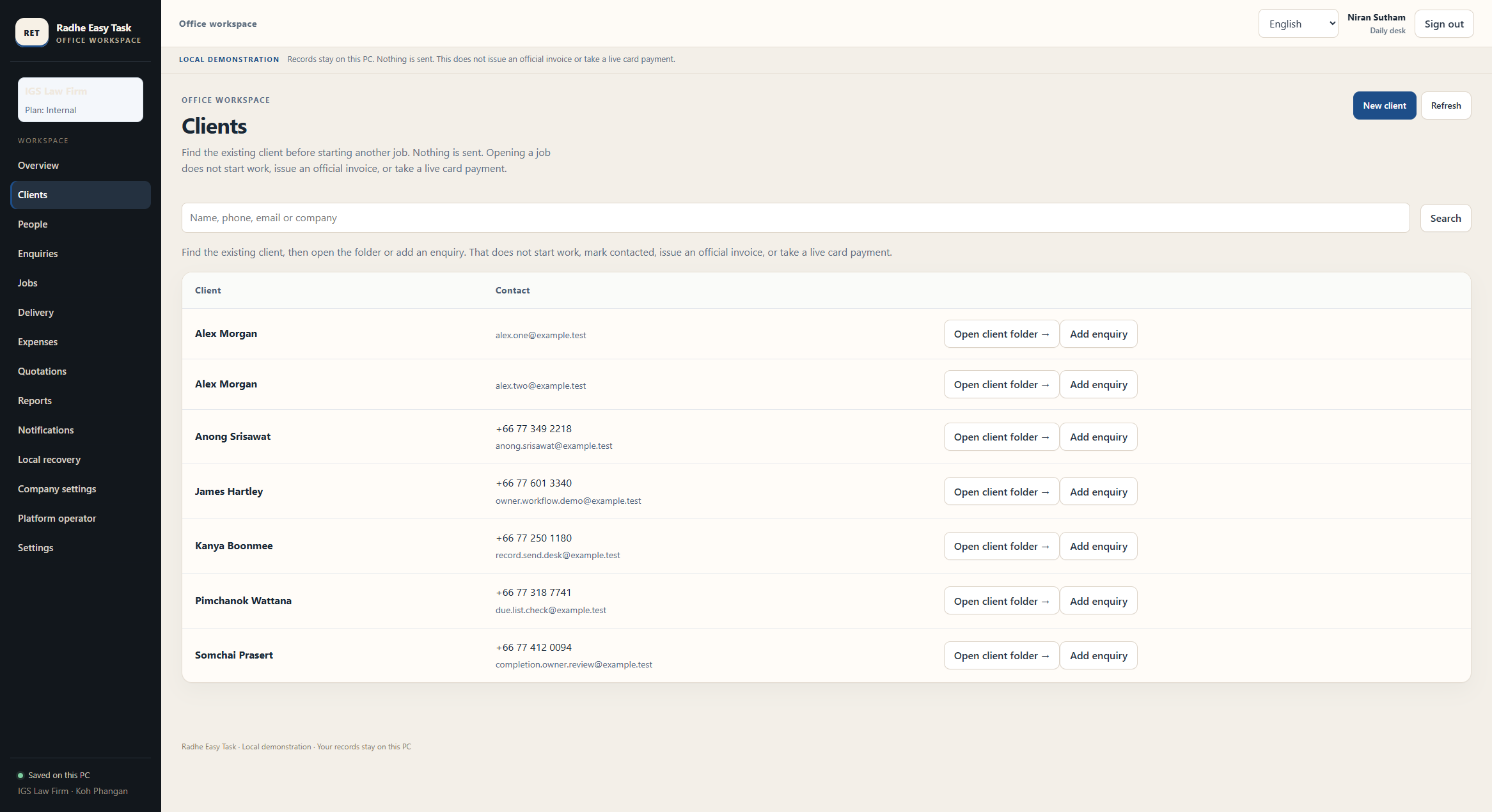
One list of the people the office already knows, with the phone and email on that folder.
How it helps
A new enquiry starts from the existing client, so the same person is not opened twice.
Enquiries
What this tab does
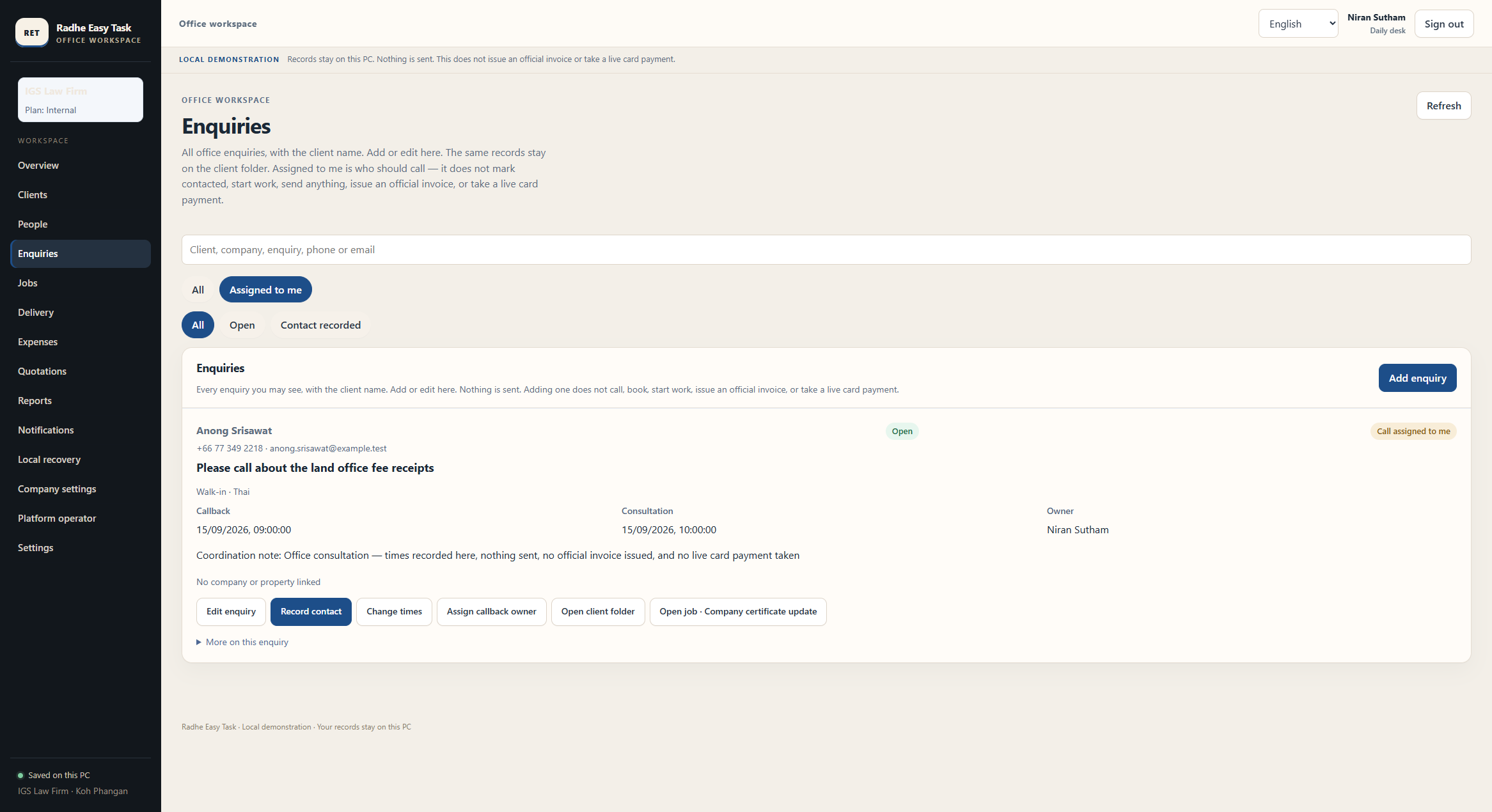
A callback or consultation stays with the client name, the time, and the person assigned to call.
How it helps
The client is not left waiting. The desk names who should call, and it does not send the message.
Jobs
What this tab does
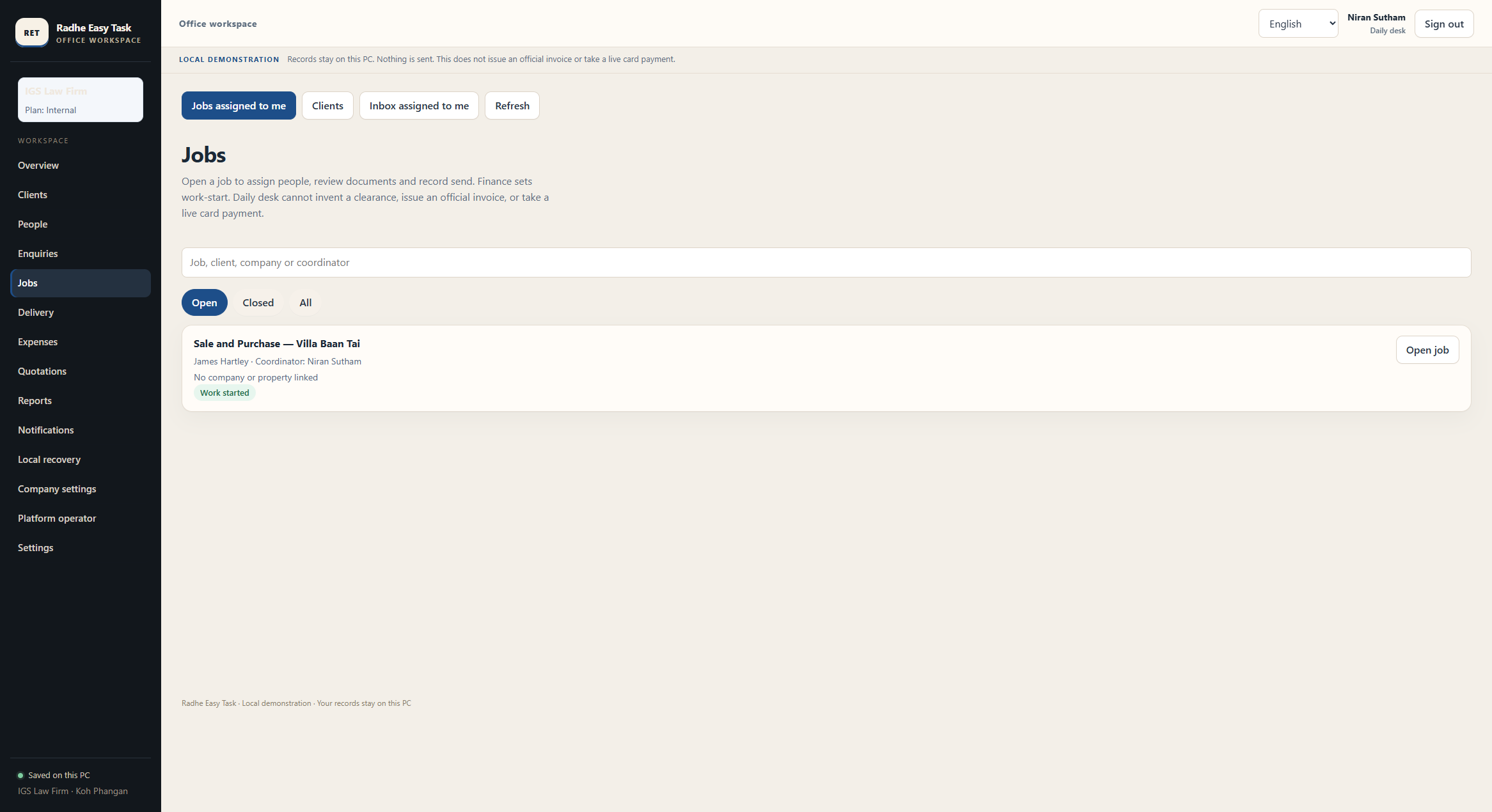
Open work stays in one list, with the client, the coordinator, and whether work has started.
How it helps
Anyone can say which matter is still open. An open job stays open until the office finishes it.
People
What this tab does
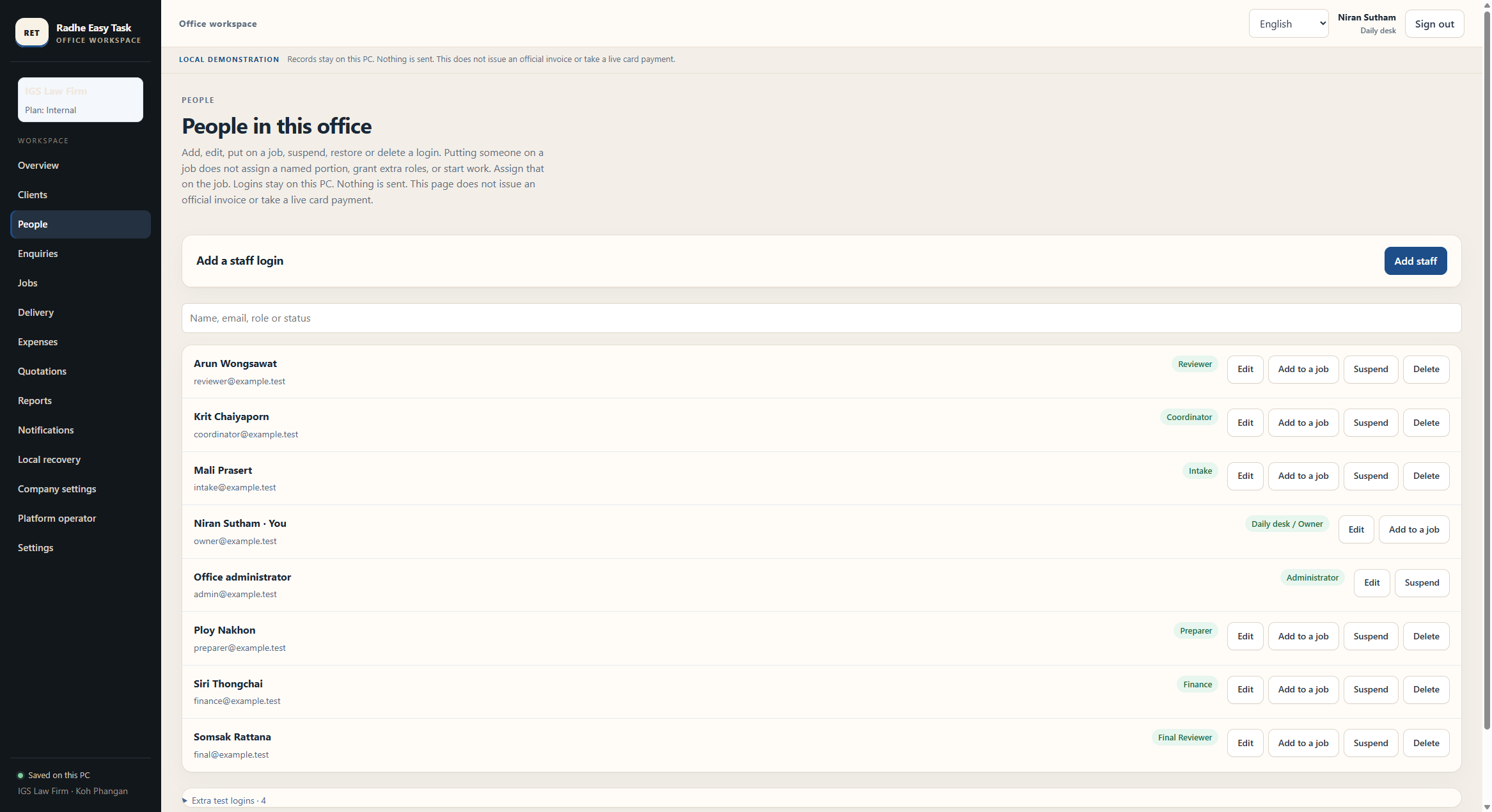
Each login has a role. Owner, coordinator, intake and reviewer are named people.
How it helps
The client’s work is given to a person. Putting someone on a job does not start a second job.
Delivery
What this tab does
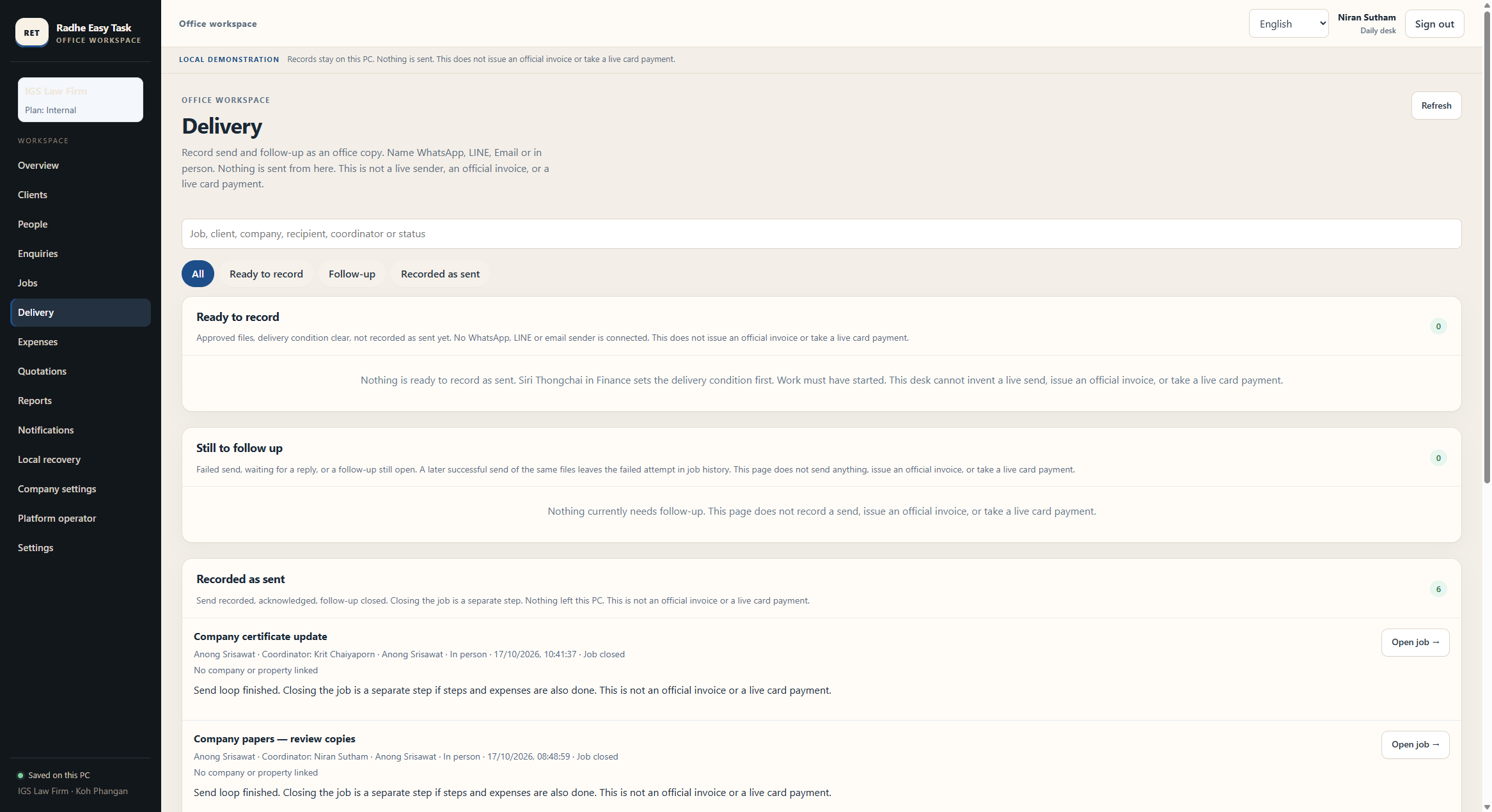
The office records a handover as a copy and names WhatsApp, LINE, email, or in person.
How it helps
The file shows what was handed over. Nothing is sent from this screen.
Expenses
What this tab does
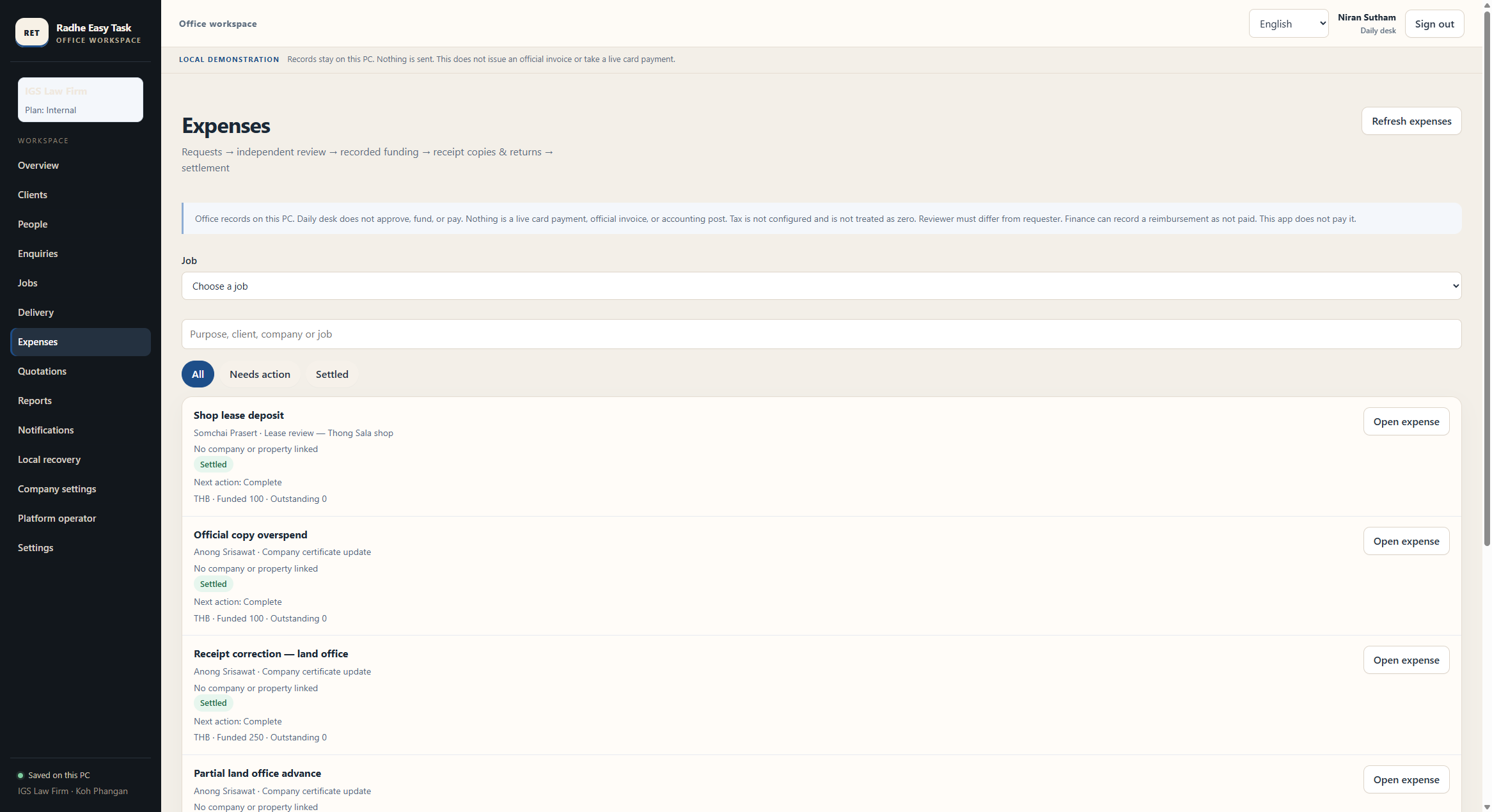
A cost prepared for a job stays on that job, with the purpose and the client.
How it helps
The matter keeps the figures the office is preparing. This screen does not pay and does not issue an invoice.
Quotations
What this tab does
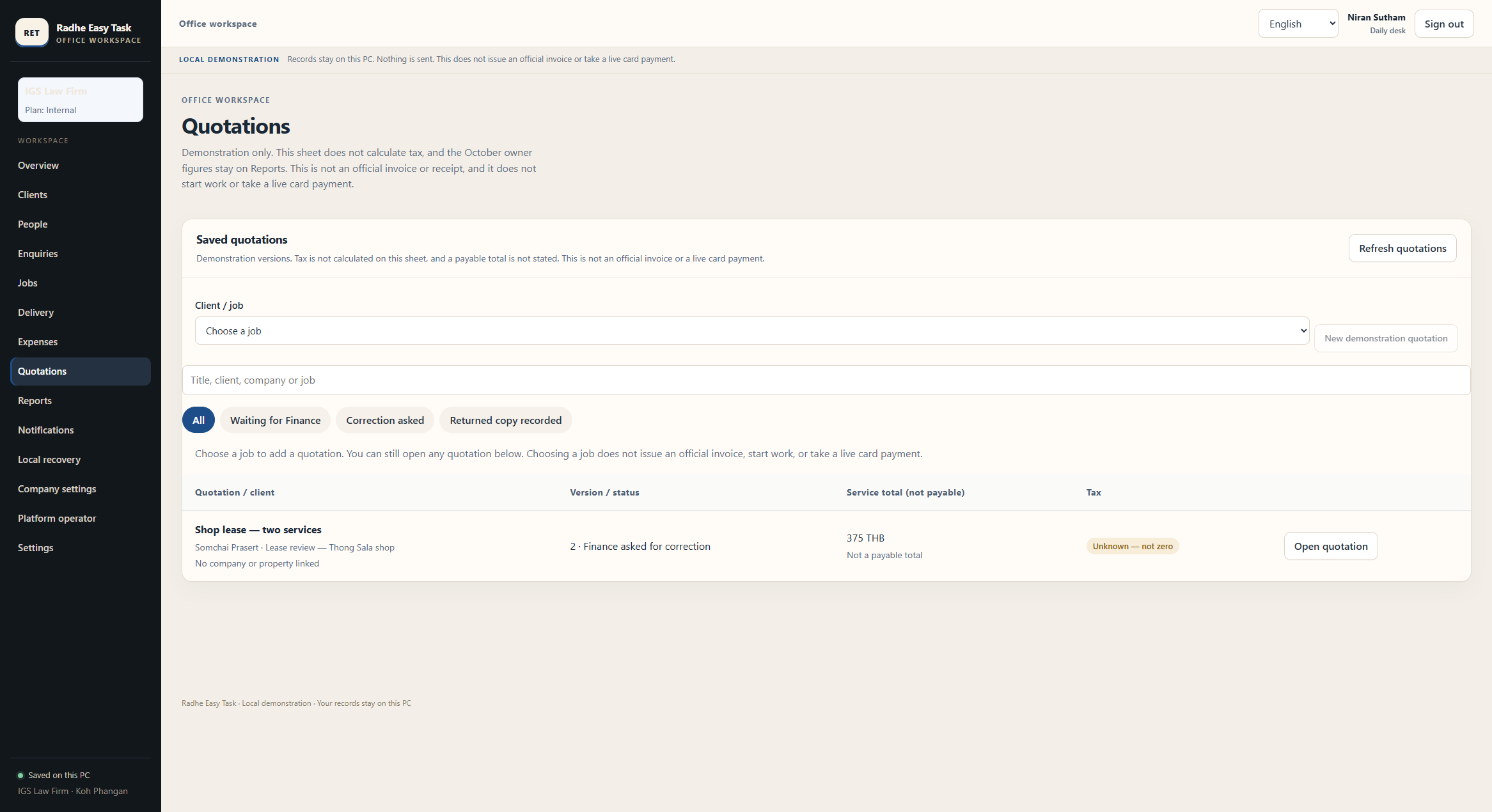
A prepared quotation stays with the job and the client.
How it helps
The client can be shown the prepared figure. This sheet is not an official invoice.
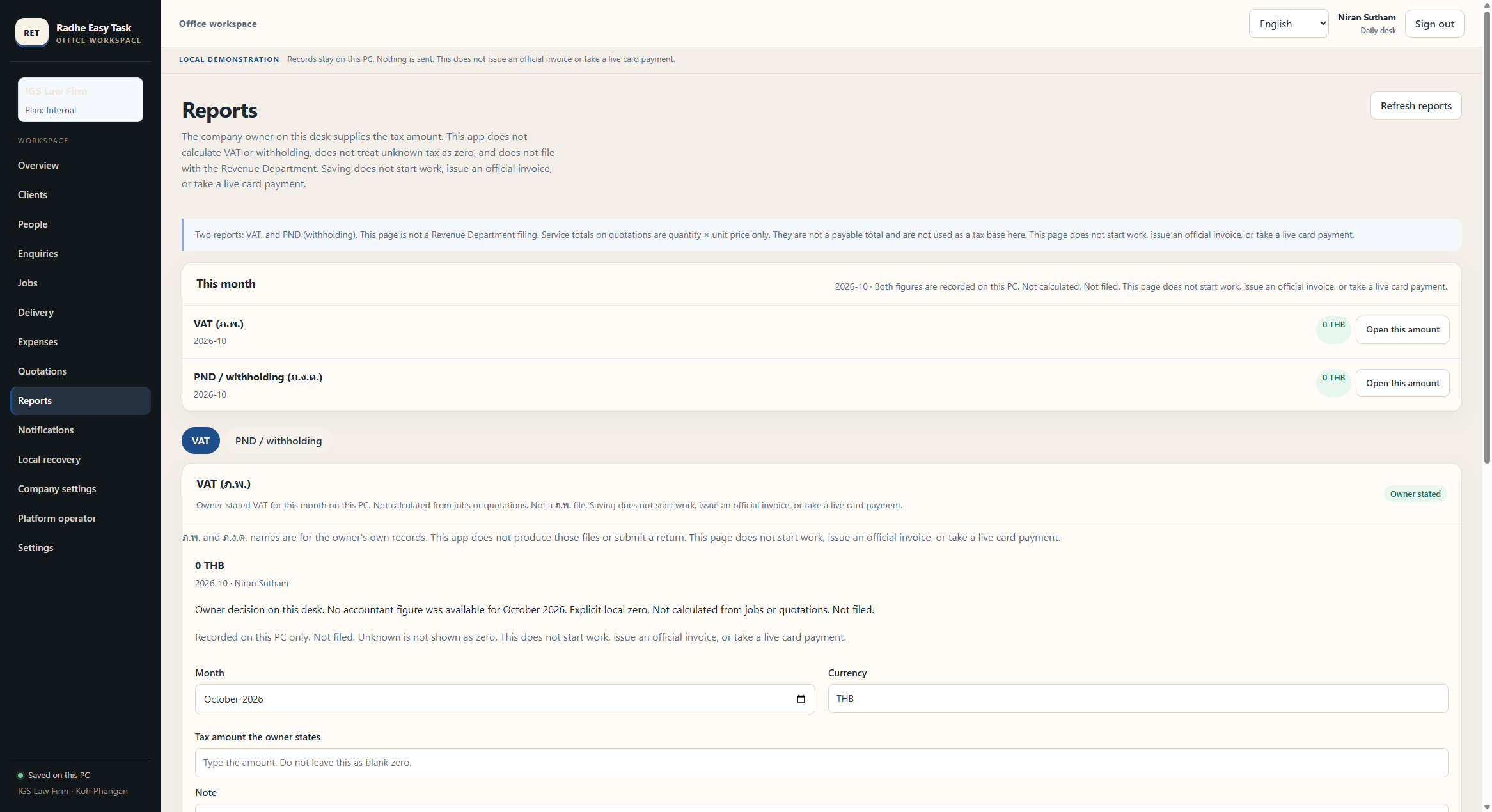
Reports
What this tab does
The owner keeps the month’s recorded tax figures on the desk, VAT and withholding separately.
How it helps
The office can look at what is already recorded. This page does not file a return.
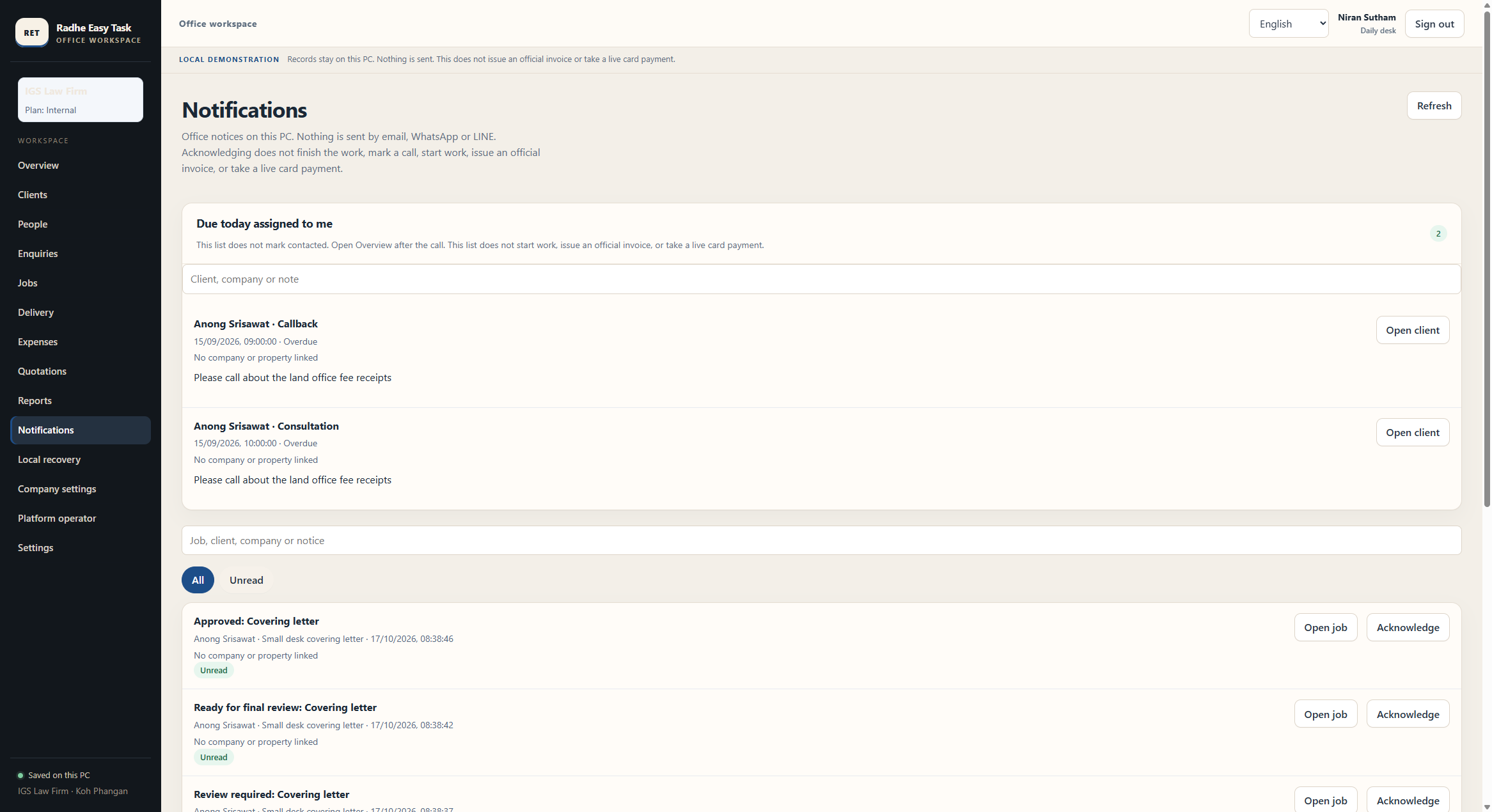
Notifications
What this tab does
Notices for this login stay on the desk, together with what is due today.
How it helps
The person responsible sees what needs a look. Acknowledging a notice does not finish the work or send a message.
VAT is not charged.
Starter
Up to 5 users
Monthly
THB 250
SubscribeYearly
THB 2,800
SubscribeStart 14-day free trialTeam
Up to 10 users
Monthly
THB 390
SubscribeYearly
THB 3,700
SubscribeStart 14-day free trialBusiness
Up to 25 users
Monthly
THB 490
SubscribeYearly
THB 4,500
SubscribeStart 14-day free trialCreate the company and the workspace opens. No card and no email. The 14 days start then. The plan is chosen on that screen. This does not open the office records on the office computer.
Open your workspace
The company opens when you create the account. No card. No email to Radhe.
No card. Create the company and the 14 days start.